
Introduction #
Git is a distributed version control system that is free and open source designed to handle everything from small to very large projects with speed and efficiency.
Meanwhile, GitHub is a complete developer platform and service for building, scaling, and delivering secure software using Git.
Git Installation #
Git installation for Windows is as follows,
Windows
First download the Git installer at https://git-scm.com/downloads. Then open that installer.
Follow the next steps. Just click Next, make sure it’s on default, then next again. As usual~~
Linux (Ubuntu)
Perform update and upgrade on the system with the following command:
sudo apt update && sudo apt upgrade -y
Install the Git package:
sudo add-apt-repository ppa:git-core/ppa
sudo apt update
sudo apt install Git
Verify the Git version and ensure it’s at minimum version 2.281
git --version
MacOS
Follow these steps hehehe
Configure Git and GitHub #
Create a GitHub account #
Open GitHub.com and create an account! During account setup, an email address will be requested by Git. And it must be a real email. Because contributions will be identified by default by the email that will be used.
Concerns about privacy, or simply not wanting your email address to be known publicly, then you can check two boxes on the Email Settings page after logging into GitHub account settings:
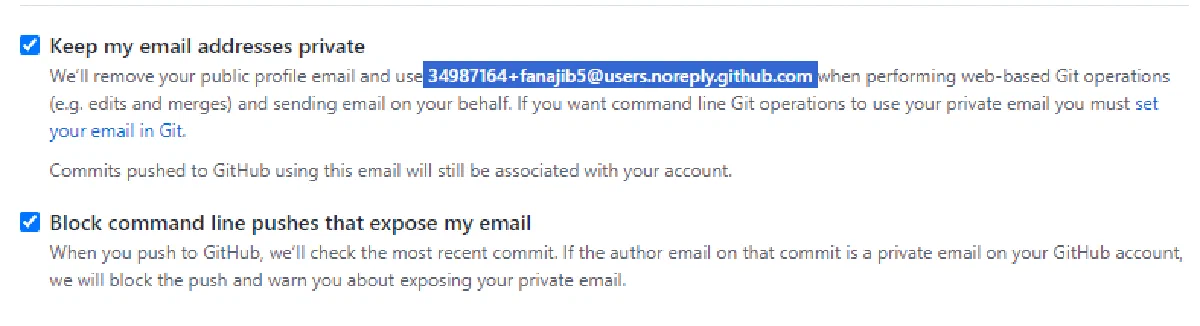
So, an email like [email protected] will be used for Git configuration.
Set up Git #
For Git to work properly, users must provide information so local Git users can be linked to GitHub. When working in a team, others may see what has been done and who did what on each line of code.
On Windows, the built-in Git Bash.exe application can be used for Git configuration.
The following command will configure Git. Information inside quotation marks can be replaced with personal information (but keep the quotation marks)!
git config --global user.name "BudiTanpoHutang99"
git config --global user.email "[email protected]"
If using GitHub private email, the configuration would be:
git config --global user.email "[email protected]"
The default branch on new repositories has been changed by GitHub from master to main. So, change the default branch for Git using the command:
git config --global init.defaultBranch main
Colorful output with git can be enabled with:
git config --global color.ui auto
The reconciliation behavior of default branch to merging can be set with:
git config --global pull.rebase false
OK! Let’s try verifying the results of the Git configuration that has been done:
git config --get user.name
git config --get user.email
Create SSH keys #
SSH keys are cryptographically secure identifiers which are like very long passwords to identify user machines. GitHub uses SSH keys so users don’t have to type username and password every time.
On Windows, you can use PuTTYgen.exe or OpenSSH to generate SSH keys. Then save both the public key and private key.
Link SSH keys with GitHub #
First, log in to GitHub and click the profile picture in the upper right corner. Then, click Settings in the drop-down menu.
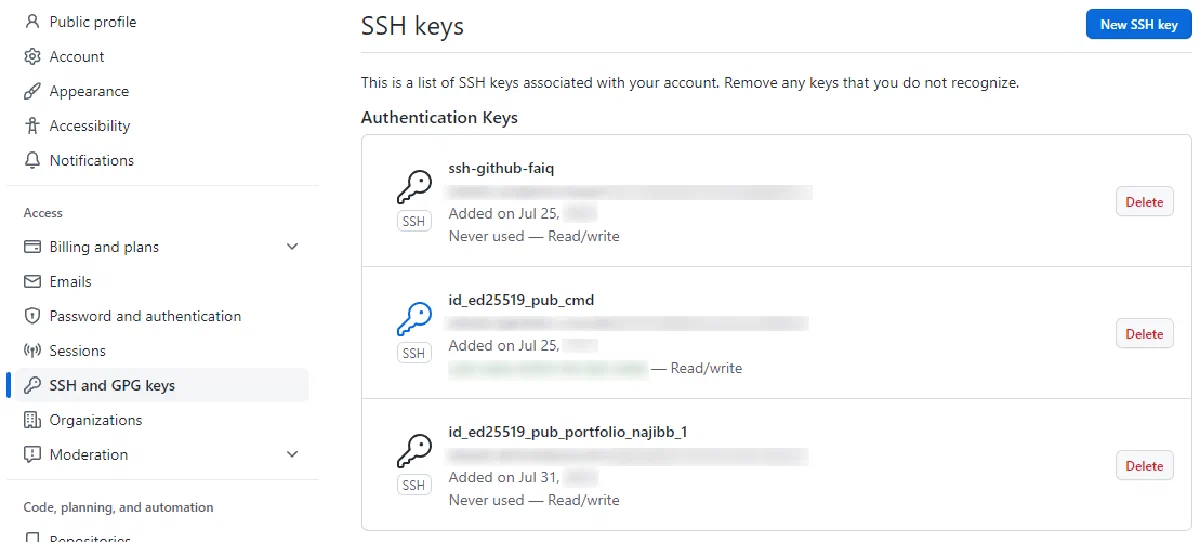
Next, on the left side, click SSH and GPG Keys. Then, click the New SSH key button in the upper right corner. Give the SSH key something descriptive enough or any name at all. Leave the GitHub Settings window open for the next step.
Now, copy the SSH public key that was just saved (Note that the .pub file extension is important in this case.)
Now, return to GitHub in the browser window from earlier and paste the copied key into the key field. Keep the key type as Authentication Key, then click Add SSH key. Done! The SSH key has been successfully added!
Test SSH keys #
Follow the instructions in this GitHub article to verify the SSH connection (Don’t forget to remove $ when copying code!). This response can be seen in your terminal: Hi username! You’ve successfully authenticated, but GitHub does not provide shell access. If this message appears, the SSH key was successfully added. If the output doesn’t match, try these steps again or check this reference.
Lessons Learned #
Git installation on each OS is quite different, especially Windows which is not equipped with a Package Manager. Unlike Ubuntu which has apt and MacOS with brew.
There is an article discussing that there is an asymmetric cryptography algorithm that is no longer recommended for generating SSH, because it is considered weak. But it seems I forgot to save the link to that article hehehe. Oh! Just found a similar article, turns out DSA keys.
Thanks to those who stumbled upon this notes section and read it. Hope these notes are useful for you.
That’s all. Regards.
-
Setting Up Git by The Odin Project. ↩︎